Table of Contents
- Quick Answer
- Why a Robot Vacuum Is Not Connecting to Wi-Fi
- Safe First Checks Before Contacting Support
- When Wi-Fi Issues Point to a Deeper Problem
- Frequently Asked Questions
Quick Answer
A robot vacuum not connecting to Wi-Fi (or showing offline in the app) usually comes down to one of a few causes: your phone or router is on a 5GHz network the robot doesn’t support, the robot is too far from the router during setup, a required app permission (like Location) isn’t enabled, or a router setting is blocking the connection. Most robot vacuums only support 2.4GHz Wi-Fi, not 5GHz — that single mismatch causes a large share of “won’t connect” cases. Try the safe first checks below before assuming the unit is broken or contacting official support.
Why a Robot Vacuum Is Not Connecting to Wi-Fi
A robot vacuum not connecting to Wi-Fi is one of the most common setup and ongoing-ownership frustrations reported by current owners, and it’s rarely a sign the unit itself is broken. Most cases trace back to one of a few recurring causes.
Wrong Network Frequency (Most Robot Vacuums Need 2.4GHz, Not 5GHz)
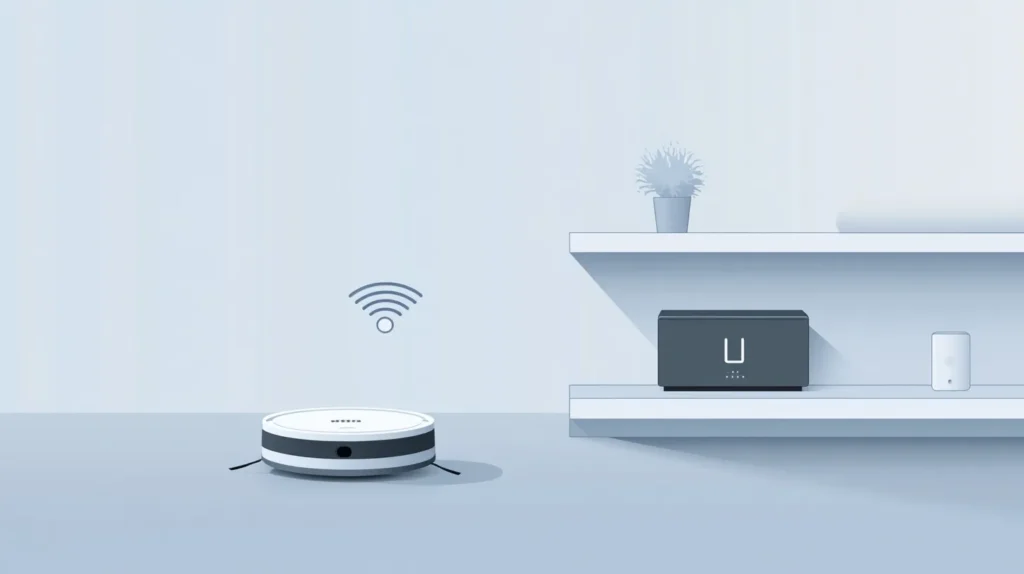
Most robot vacuums only support 2.4GHz Wi-Fi and cannot connect to a 5GHz network at all. This is consistent across brands, not a quirk of one manufacturer. Many home routers broadcast both bands under the same network name (a “combined” or “auto-switching” SSID), so a phone or robot can end up on the 5GHz band without anyone realizing it. If your router supports separating the two bands into distinct network names, that’s usually the most reliable fix.
Weak Signal or Router Distance
Setup — and sometimes day-to-day operation — can fail if the robot vacuum or its dock is too far from the router, or if there are several walls or floors in between. This matters most during initial pairing.
App Permissions Not Enabled
Most companion apps require certain phone permissions to complete setup, most commonly Location Services, and sometimes Bluetooth and local network access as well. If any of these are turned off, the pairing process can silently fail or get stuck partway through, even when the Wi-Fi credentials themselves are correct.
Router or Network Configuration
Router-side settings can also block a connection. Router or network configuration issues are a genuinely common, cross-brand cause — but the specific setting responsible varies by router and household. On some routers, specific security features such as WPA3-only mode, MAC address filtering, or a hidden network name (SSID) can prevent a robot vacuum from completing setup. Separately, in homes with mesh Wi-Fi systems, a feature usually called “Fast Roaming” or “Band Steering” has also been identified as a cause — disabling it, if your mesh system offers that option, can resolve a stuck connection.
| Cause | Quick Check |
|---|---|
| Wrong network frequency (5GHz instead of 2.4GHz) | Confirm your phone and the robot are both on the same 2.4GHz network |
| Weak signal or router distance | Move the dock closer to the router during setup, then relocate back afterward |
| App permissions not enabled | Check Location, Bluetooth, and local network permissions for the app |
| Router or network configuration (mesh Fast Roaming; on some routers: WPA3-only, MAC filtering, hidden SSID) | Check your router’s security/band settings, or temporarily disable mesh Fast Roaming if available |
Safe First Checks Before Contacting Support
These are safe, non-invasive checks that may help resolve a connection issue. They are not guaranteed to fix every case, and they don’t replace your device’s official app support or manufacturer support channel if the problem continues.
Confirm Your Phone Is on the Same 2.4GHz Network
Before starting or retrying setup, check that your phone is joined to the same 2.4GHz network you intend to use for the robot vacuum — not a 5GHz band with a similar or identical name. If your router shows one combined network name, check your router’s app or admin settings for an option to split 2.4GHz and 5GHz into separate names during setup.
Move the Dock Closer to the Router During Setup
If setup is failing rather than just a later dropout, try relocating the dock (with the robot on it) closer to the router temporarily. Once the initial pairing succeeds, you can move it back to its normal spot, keeping in mind that ongoing connection stability still depends on reasonable signal strength at the final location.
Reset Pairing Mode and Reconnect in the App
Most companion apps have a way to remove the device and re-add it, which resets the pairing state. Check your phone’s Bluetooth, Location, and local network permissions for the app before retrying, since a disabled permission is easy to overlook and will cause the same failure to repeat.
Check for App and Firmware Updates
An outdated companion app version is a recurring, cross-brand cause of connection failures — it’s a quick, safe check worth doing before more involved troubleshooting. Confirm you’re on the latest version of the app from your device’s app store, and check within the app whether a robot firmware update is available and pending.
When Wi-Fi Issues Point to a Deeper Problem
If you’ve worked through the checks above and the robot vacuum still won’t connect, or the connection repeatedly drops after a successful setup, this may point to a router-specific configuration issue beyond these general checks, a hardware issue with the robot’s Wi-Fi module, or an account/app-server-side issue on the manufacturer’s end. None of the checks in this article are a guaranteed fix, and none of them replace your model’s manual or official manufacturer support if the problem persists. For other common reasons a robot vacuum stops responding altogether (not just a Wi-Fi issue), see Why a Robot Vacuum Stops Working.
Wi-Fi and app connectivity are a separate concern from a robot vacuum’s regular upkeep — for a general overview of what to check and clean on a routine basis, see Robot Vacuum Maintenance Schedule.
Frequently Asked Questions
Does a robot vacuum stop cleaning if it loses Wi-Fi?
No. Most robot vacuums can still run scheduled or button-started cleaning cycles and return to their dock without an active Wi-Fi connection. Wi-Fi is generally needed for app-based scheduling, remote start, maps, and notifications, not for the robot’s basic cleaning function.
Why did my robot vacuum suddenly stop connecting after working fine for months?
This is often linked to a router change — a firmware update, a new mesh system, or an ISP-side network change can all shift settings like the band configuration or security mode without an owner changing anything themselves. Reviewing recent router or network changes is a reasonable first step.
Does app quality matter when buying a robot vacuum?
It can. Companion app reliability and setup friction vary across brands. If Wi-Fi/app connectivity is a priority for you, it’s a factor worth researching for a specific model before buying — see our Robot Vacuum Buying Guide for Beginners for other factors to weigh.
Should I contact the manufacturer if none of these checks work?
Yes. These are safe first checks, not a full diagnostic. If the issue repeats after trying them, check your model’s manual or contact official app/manufacturer support rather than continuing to troubleshoot the Wi-Fi module yourself.